Description: Make the RDP can save the password after system reboots.
STEP:
Add Password Checkbox.
1. Copy res file from C:\WINCE420\PUBLIC\RDP\OAK\UIT\CETSC\RES into C:\WINCE420\PUBLIC\RDP\OAK\UIT\CETSC\UI
2. Open tscui.res with Platform Builder
3. Remove Logon Settings Group Box. If you do not do that, the following check box will be hiding below Group Box.
4. Add one Check Box into IDD_PROPPAGE_GENERAL as showed below.
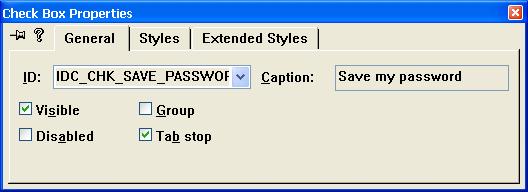
5. Re-add the Group Box.

6. Save the modifications.
7. Open the C:\WINCE420\PUBLIC\RDP\OAK\UIT\CETSC\BASE\mainwnd.cpp file. And go to line 948 for removing the operation of deleting password.
|
DWORD dwType, dwVal, dwDefVal=0, dwSize = sizeof(DWORD); if ( (!_pSettings->Read(PROP_SAVEPASSWORD, &dwType, (PBYTE)&dwDefVal, (PBYTE)&dwVal, &dwSize)) || (dwType != REG_DWORD) || (dwSize != sizeof(DWORD)) || (dwVal != 1) ) { _pSettings->Delete(PROP_CLEARTEXTPASSWORD); } _pSettings->Delete(PROP_SAVEPASSWORD); |
8. Open one project, and compile the CETSC code in C:\WINCE420\PUBLIC\RDP\OAK\UIT\CETSC\.
9. Sysgen the CETSC by following instruction.
|
Sysgen –p RDP cetsc |
10. You will get one cetsc.exe that can save password with xxx.rdp file.
Build an Image that supports saving password function of RDP.
- New a Platform with RDP features
- Add Hive-base Registry
- Add MFC feature into your Image
- Build the OS Image
- Make the OS Image again
Setup RDP Autologon at startup.
- Double Click the Remote Desktop Connection and Click Options
- Fill out the General tab with correct information for RDP server. Make sure you check the “Save my password” checkout

3. Click the “Save As…” and save this .rdp file in your disk.

請先 登入 以發表留言。